How to Turn n8n Workflows into an AI Chat UI (Charts, Tables & Graphs Included)

If you have created an automation workflow using n8n and want to present it to users in a clean and modern chat interface, you can use Agenytics. It transforms your workflow into a chat interface with tables, charts, and graphs. The project is built on the Laravel + Vue stack and is production-ready. You can use it to create chat interfaces for RAG systems, Business Intelligence analytics reports, and other applications.
First, you should understand that Agenytics is a self-hosted starter kit with open source code. You have complete access to the codebase and can modify or extend it according to your needs.
Below is a simple example demonstrating how to quickly integrate your n8n workflow into the chat interface.
Setup
1. Configure Your n8n Workflow
First, in your n8n workflow, you need to add the Chat Node.
You can see how to configure it with Basic Auth security in our example file n8n_test.json in our codebase. For detailed instructions, refer to our setup documentation
2. Return Data Format
In your final node, you must return your data in a predefined format.
The key must be output, and its value must be an array of UI objects.
For example, if you want to return:
- Text generated by your AI agent
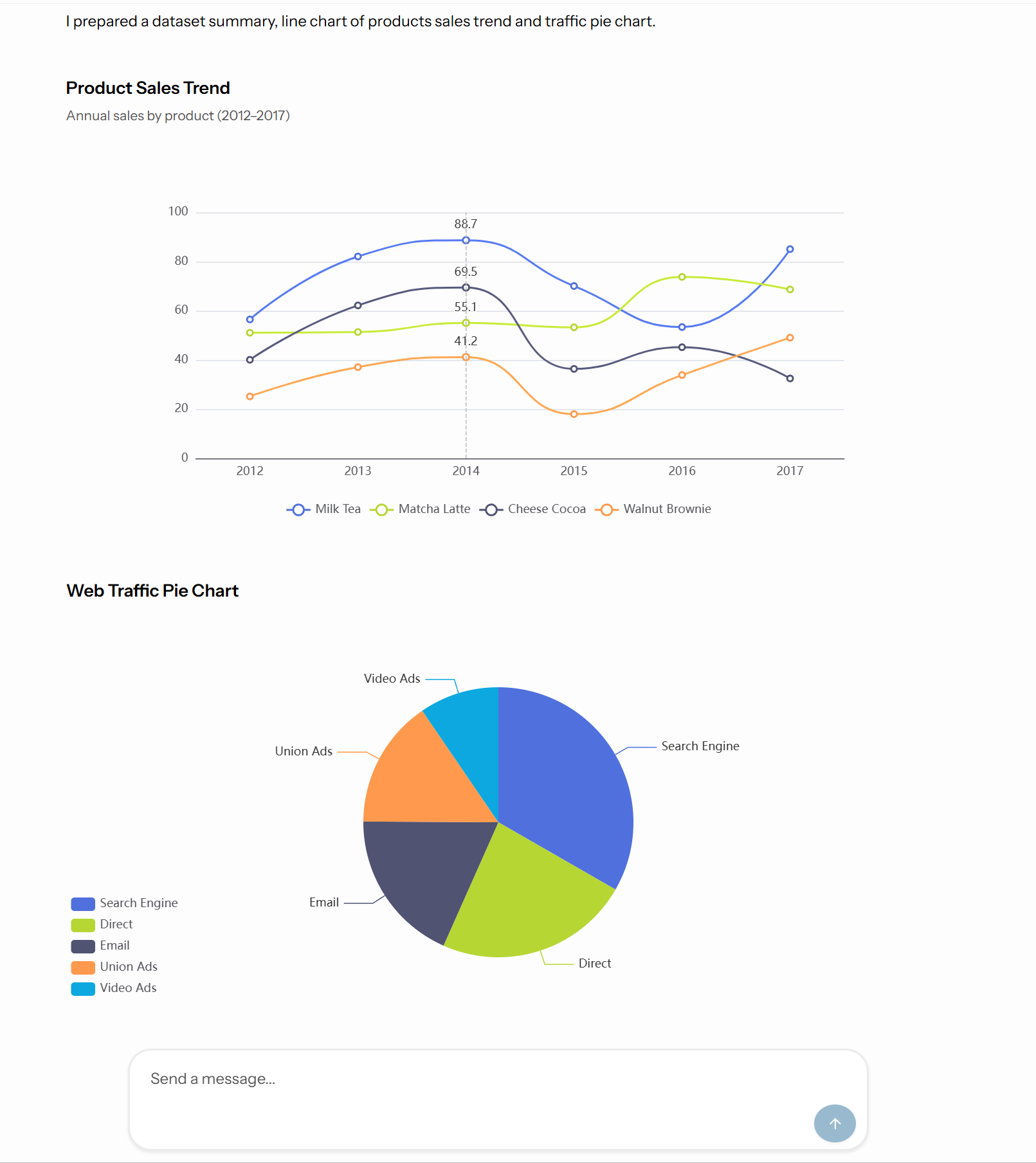
- A product sales trend line chart
- A web traffic pie chart
Then your final node should return data approximately in the following format:
[
  {
    "ui_type": "text",
    "data": {
      "content": "{{ $json.agent_output }}"
    }
  },
  {
    "ui_type": "line-chart",
    "title": "Product Sales Trend",
    "description": "Annual sales by product (2012–2017)",
    "data": {
      "x_axis": {
        "values": {{ $json.sales.x_values }}
      },
      "series": {{ $json.sales.series }}
    }
  },
  {
    "ui_type": "pie_chart",
    "title": "Web Traffic Pie Chart",
    "data": {
      "series": {{ $json.traffic.series }}
    }
  }
]
Each object in the array represents a UI component that will be rendered automatically in the chat interface. If you need to return only Markdown text, use the text UI type exclusively. For more information about UI types, please refer to our documentation.
Result of the above example:
Generally, the data used in this example — such as $json.sales and $json.traffic — should be prepared in the previous nodes of your workflow using various n8n automation capabilities. These can include integrations with Google Sheets or other data storage platforms such as PostgreSQL, MongoDB, e.t.c.